The pursuit page
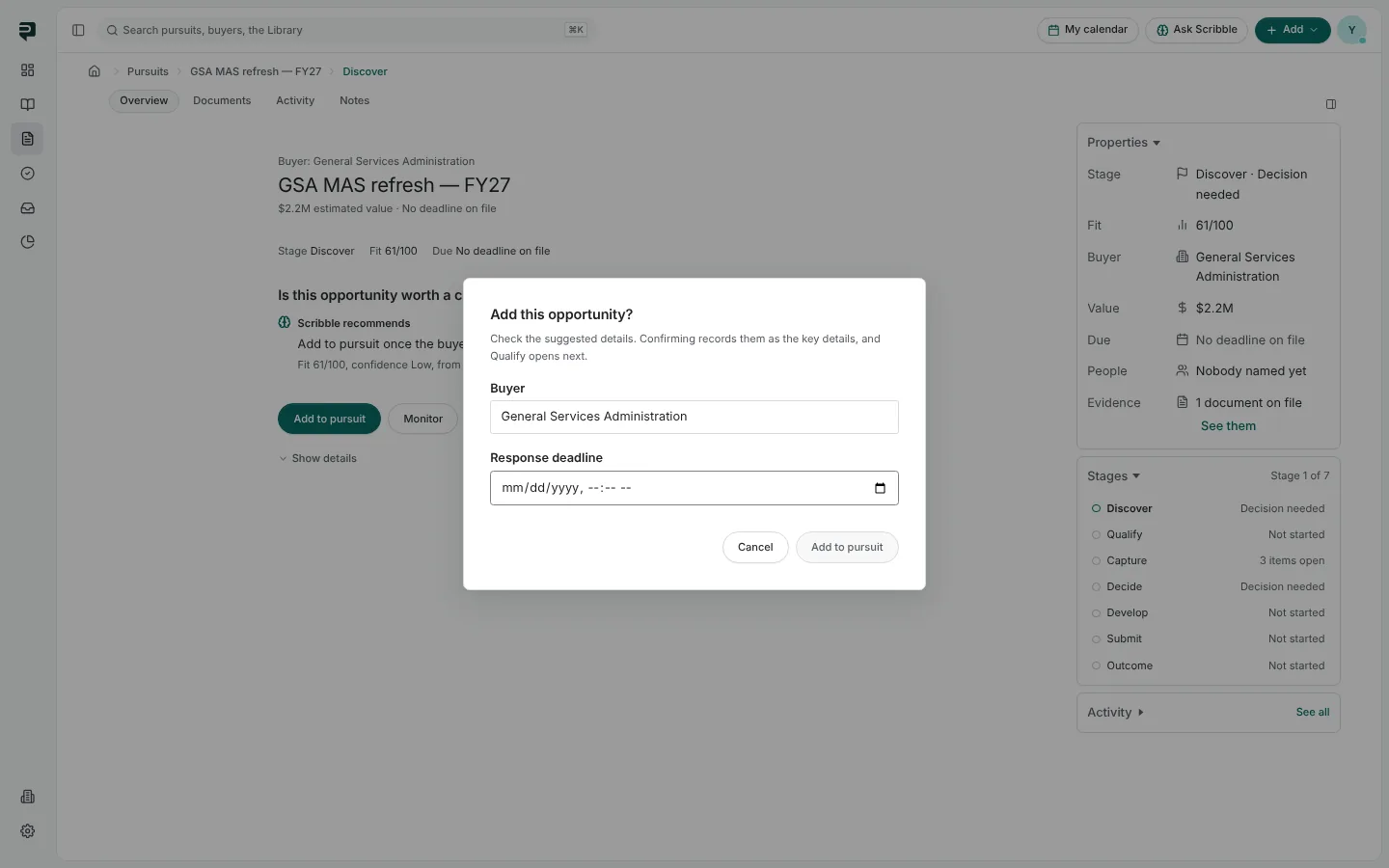
How a pursuit is laid out. One question for the stage you are on, Scribble's recommendation, the action to take, and the record beside it.
Open any pursuit and it lands on the stage it is at. Every stage page has the same shape, so you always know where to look.
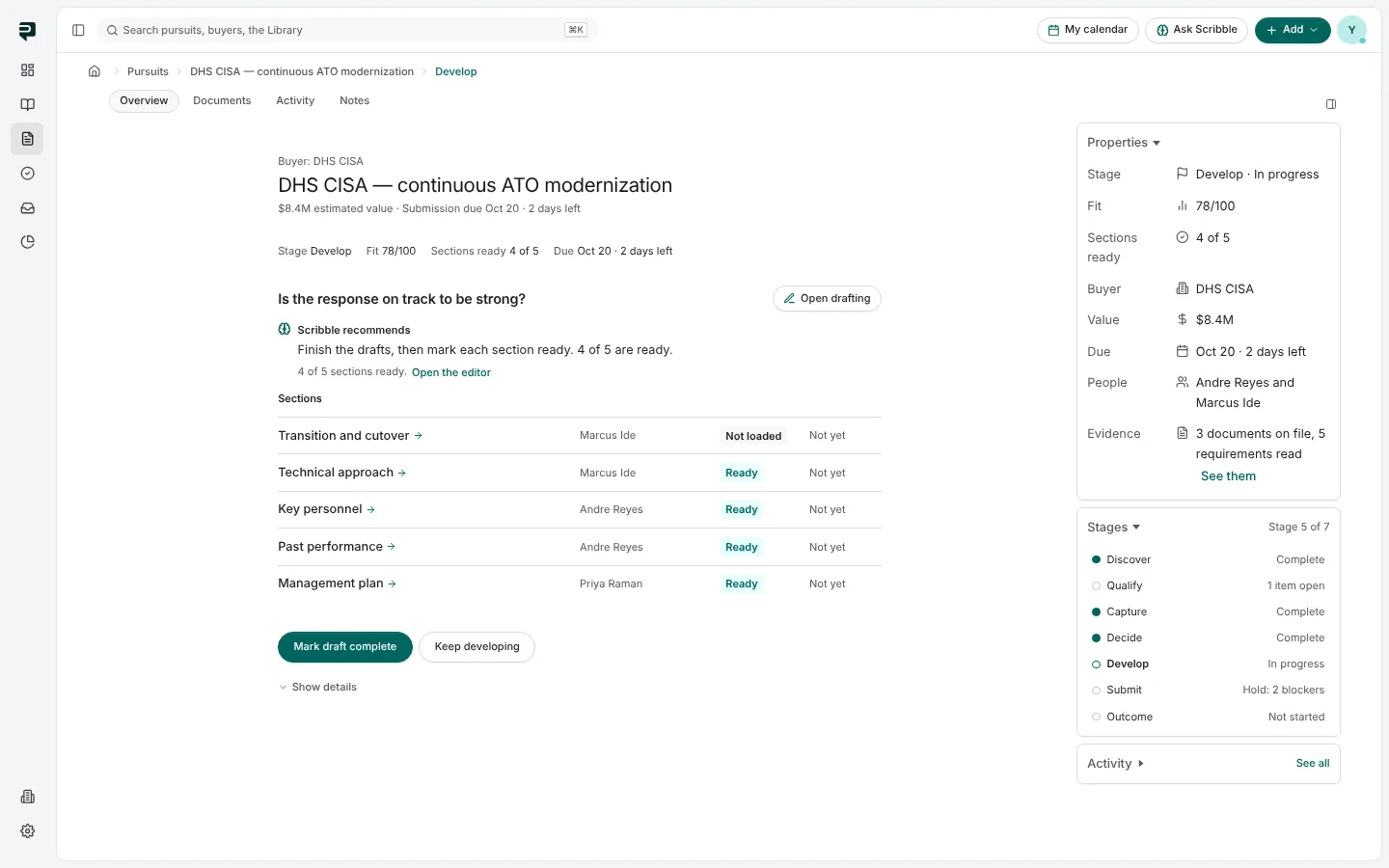
The center: one question
- The header names the buyer, the pursuit, its estimated value and how long until the response is due, with the stage and the fit underneath.
- The question is what this stage has to settle, such as "Should we pursue this opportunity?" or "Are we ready to submit?"
- Scribble recommends gives its answer in a sentence and what it rests on, with a link to how it was worked out.
- The actions are the calls you can make here. The recommended one is filled; the others are outlined. Every action asks you to confirm before it records anything.
- Show details opens the signals behind the recommendation, the next actions and what Paavya is quietly watching for this bid.
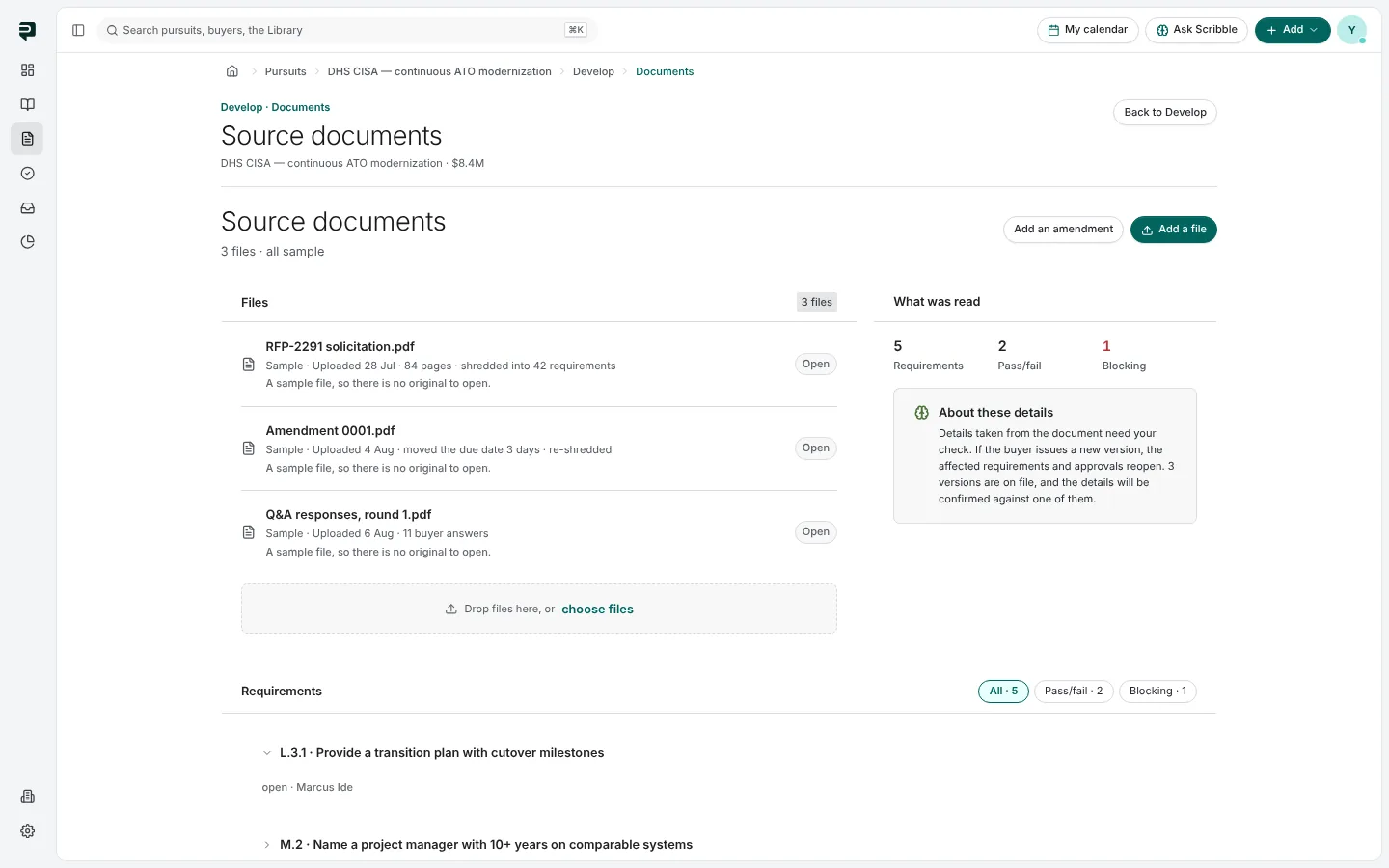
Some stages lead to a page of their own work, such as assigning sections or the compliance results. Those open in the same frame, with Back to the stage at the top and the stage's actions at the foot.
The panel: the record
The panel at the right has three parts. Each folds, and the whole panel hides with the button above it.
- Properties: stage, fit, buyer, value, due date, people and evidence on file. Values Paavya suggested but nobody confirmed are marked as suggestions and count for nothing until someone accepts them.
- Stages: all seven, each with its status (Complete, In progress, 1 item open, Not started). Click one to go there.
- Activity: what happened on this pursuit and who did it.
Documents, Activity and Notes
The tabs above the header switch the whole page:
- Overview is the stage page.
- Documents lists every file the pursuit holds, where each came from, and opens it. Use Add an amendment here when the buyer issues one after you started; Paavya reads it and shows what it changes.
- Activity is the full history.
- Notes is the team's journal on this bid.
Who can act
Each stage has an owner, usually the pursuit's manager; the final approver owns the approval. Everyone on the team can see every stage. If a stage is not yours to move, the page says who holds it and offers Message them, rather than a button that looks like yours to press.
Pictures are from Paavya's demo workspace, so names, bids and figures are illustrative. Something here does not match what you see? Tell us, or ask Scribble in the app.