Submit: check, approve and send
Run the compliance check and Library Card Scan, get the final approval, then send or record the submission.
Submit asks: are we ready to submit? It covers two pieces of work. First the response is checked and approved, then it is sent.
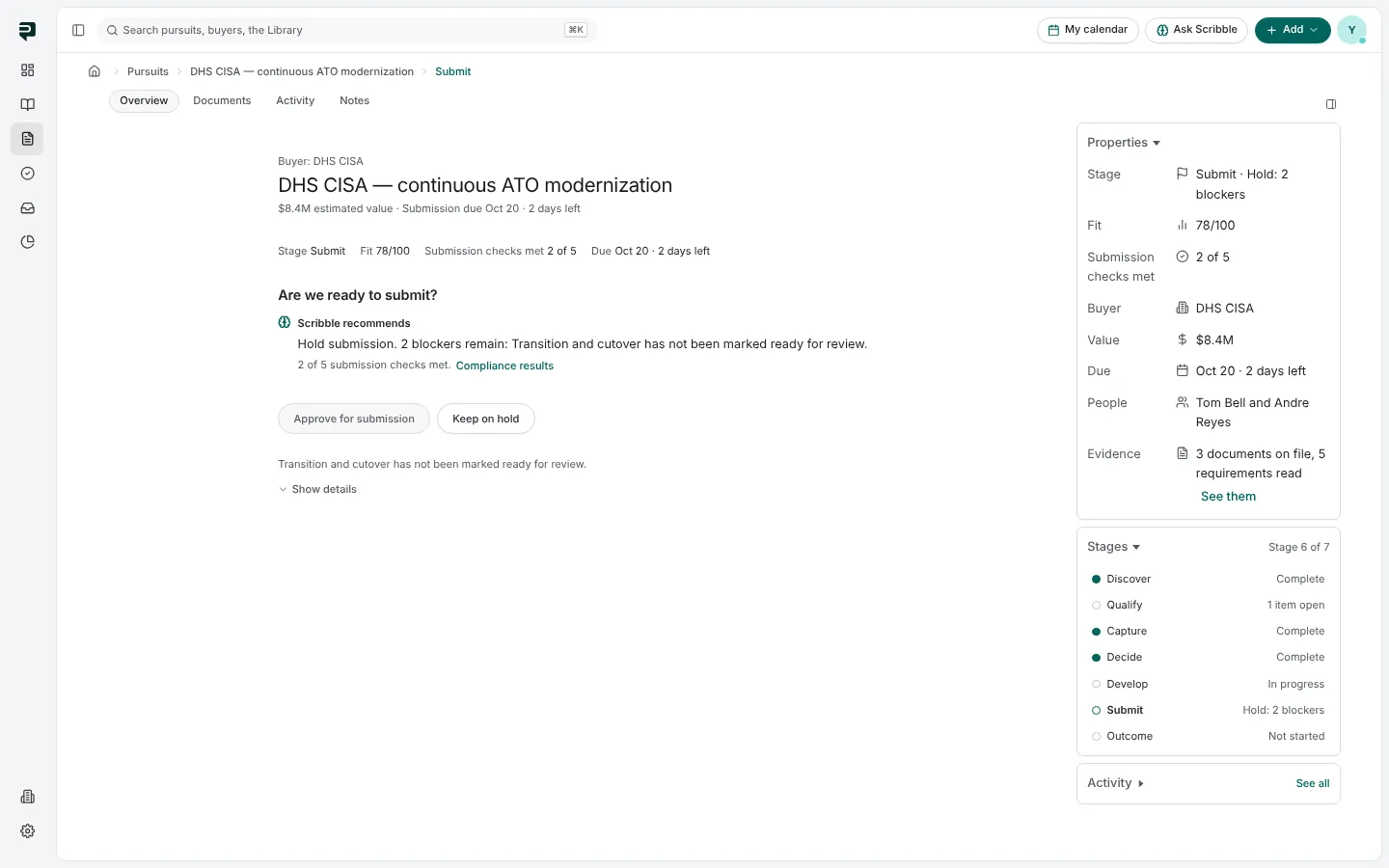
Compliance results
The check runs against the whole draft and sorts what it finds into three kinds:
- Required fixes would get the submission rejected: a pass/fail clause unanswered, a missing form, an expired certification quoted in a pass/fail section. These block.
- Award-impacting findings could cost points: an evaluation factor nobody answers, two sections giving different figures for one fact, an old value from before an amendment, the heaviest-weighted factor argued with stock claims. They never block, but you should read them.
- Advisory notes are worth a look.
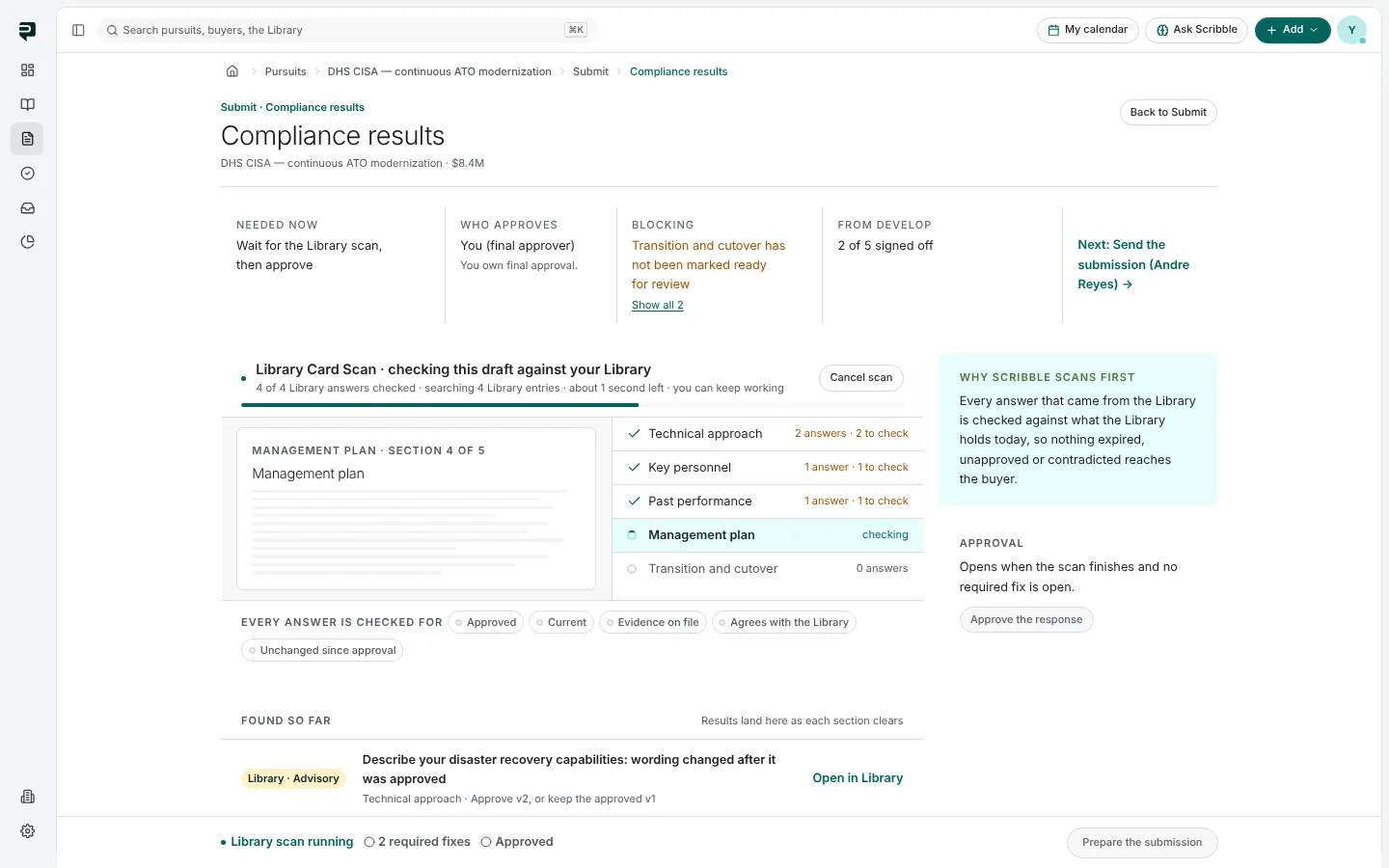
The Library Card Scan runs first. It checks every answer that came from the Library: still approved, still current, evidence on file, and agreeing with what the Library says now. Findings land as each section clears.
Approval
The final approver signs off on the whole response. A person can never approve a section they wrote unless they wrote every section. If an amendment arrives after approval, the approval is reopened automatically and says why.
Send the submission
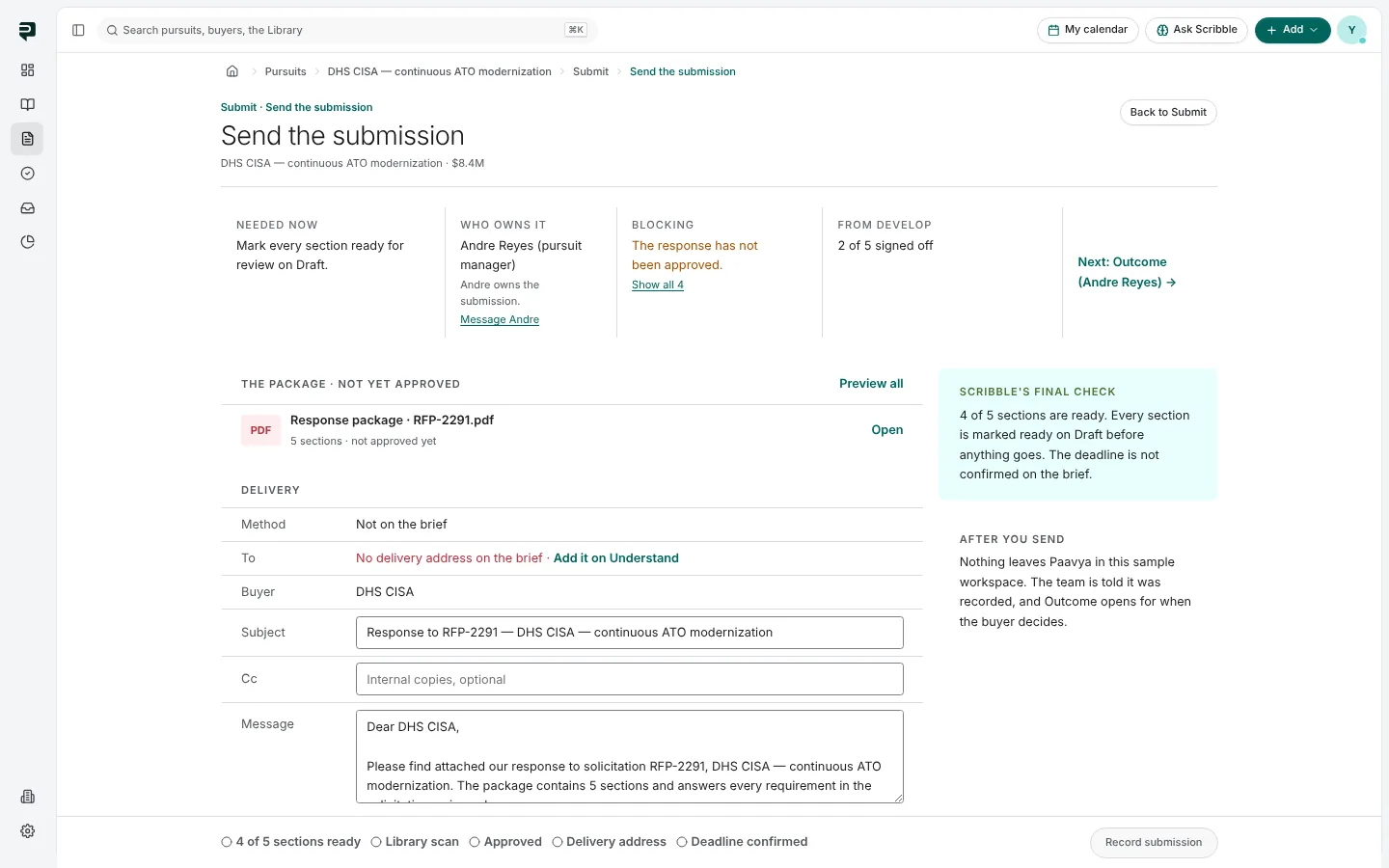
- The package: the response as one file, with Preview all.
- Delivery: method, the buyer's address on record and the subject. The address is shown so you can check it before anything goes out.
- Message: your cover note, which you can edit.
- The checklist along the foot (sections ready, Library scan, approval, delivery address, deadline confirmed) must all hold before the send button lights.
The deadline is read as an hour in the buyer's time zone. When the solicitation leaves the zone or the hour unstated, the page says what it assumed.
After you send, the team that worked the bid is told, and you can attach the confirmation number or receipt as proof of submission. Next: Outcome.
Pictures are from Paavya's demo workspace, so names, bids and figures are illustrative. Something here does not match what you see? Tell us, or ask Scribble in the app.