Start a pursuit
Bring a new opportunity in from a link, a search of open federal notices, Google Drive, a single file or nothing at all.
Add › Start a pursuit (or the Start a pursuit tile on the board) opens a new pursuit at its first stage, Discover. The seven stages run across the top so you can see where this is going; nothing is created until you choose how it comes in.
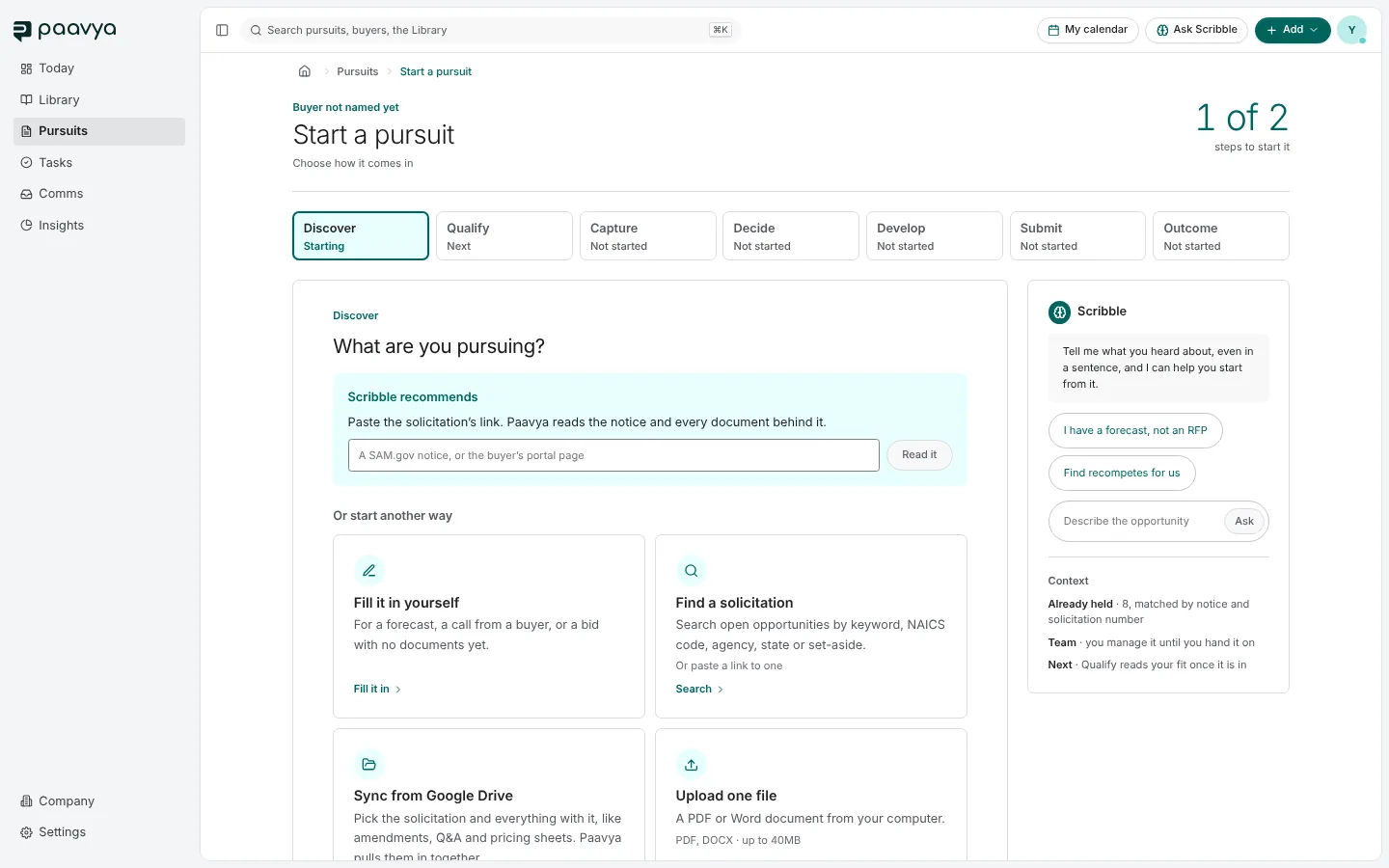
Paste the solicitation's link
The fastest way. Paste a SAM.gov notice or the buyer's portal page into the box under Scribble recommends and press Read it. Paavya reads the notice and every document behind it, including attachments and earlier versions of an amended notice, and fills in the buyer, the deadline, the contacts and the requirements.
Before anything is created, you see the notice: its dates, buyer, the work, contacts and links. Each document is listed with a kind (solicitation, amendment, Q&A, attachment and so on) that you confirm or change, because what kind a document is decides which one wins when two disagree.
If you already hold this notice, Paavya says so and opens your existing pursuit instead of making a second one. It matches on the notice id, the solicitation number or the exact link, never on a similar title.
Or start another way
- Fill it in yourself. For a forecast, a call from a buyer or a bid with no documents yet.
- Find a solicitation. Search open federal opportunities by keyword, NAICS code, agency, state or set-aside. Paavya keeps a daily copy of SAM.gov, so results come back fast and a search never runs out.
- Sync from Google Drive. Pick the solicitation and everything with it: amendments, Q&A, pricing sheets. Paavya pulls them in together as one pursuit and suggests which file is the solicitation.
- Upload one file. A PDF or Word document from your computer.
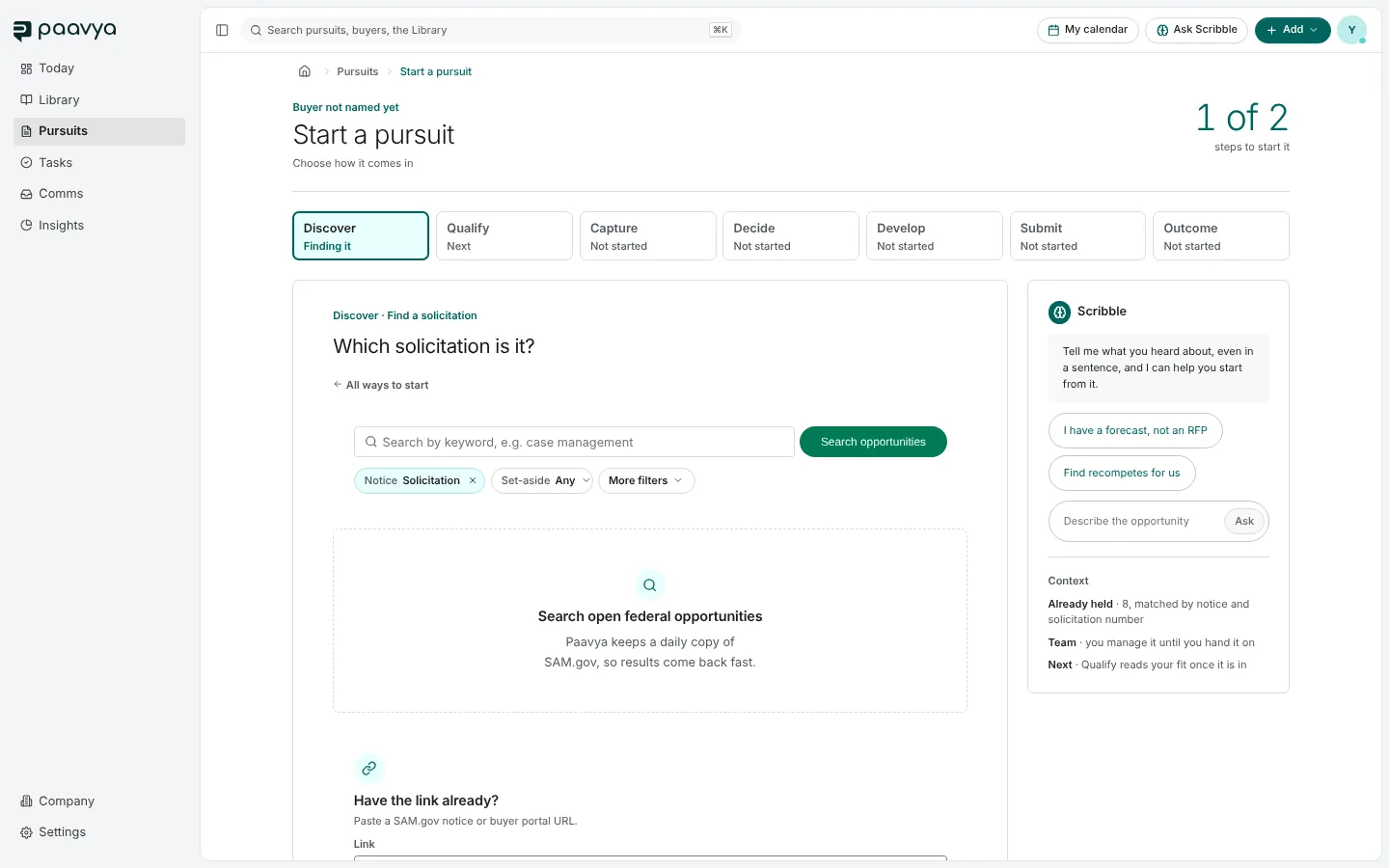
Scribble beside you
The panel at the right is Scribble. Tell it what you heard about, even in a sentence, and it helps you start from it. It also offers I have a forecast, not an RFP and Find recompetes for us. The Context list underneath shows what you already hold, who will manage the pursuit until it is handed on, and what comes next.
Pictures are from Paavya's demo workspace, so names, bids and figures are illustrative. Something here does not match what you see? Tell us, or ask Scribble in the app.